To know about types of computer, we are going to know about a computer: A computer is essentially a high-speed electronic device that takes raw data and transforms it into meaningful information through a continuous cycle of input, processing, storage, and output. At its heart, it is a versatile machine that follows a specific set of instructions—known as software—to manipulate physical components like the CPU and memory, which we call hardware. Whether it’s the smartphone in your pocket or a massive supercomputer, every computer operates by crunching billions of binary digits (1s and 0s) every second to perform tasks ranging from simple arithmetic to hosting entire virtual worlds.
Table of Contents
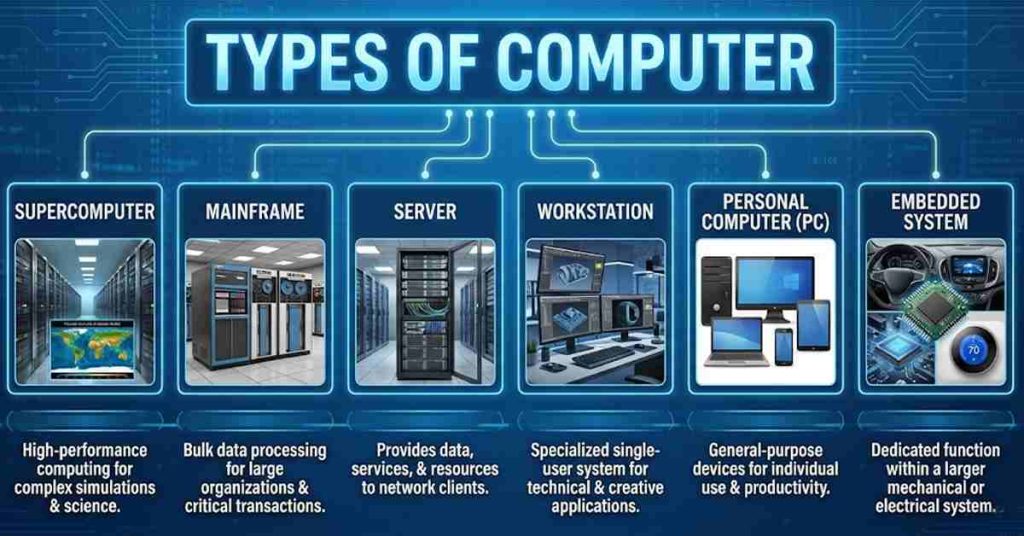
How many types of computer?
1. Classification by Size and Power
This is the traditional way to categorize computers, ranging from room-sized giants to the one in your pocket.
- Supercomputers: The “Formula 1” cars of the tech world. They perform trillions of calculations per second and are used for weather forecasting, nuclear simulations, and space exploration.
- Mainframes: These are the workhorses for large organizations (like banks or insurance companies). They handle massive amounts of data and thousands of simultaneous users.
- Minicomputers (Midrange): These sit between mainframes and microcomputers. They are often used by small to medium-sized businesses to manage data.
- Microcomputers: This is what most of us use daily. They include:
- Desktops: Fixed computers meant for a desk.
- Laptops/Tablets: Portable versions of desktops.
- Smartphones: Yes, your phone is a highly sophisticated microcomputer!
2. Classification by Purpose
Sometimes, it’s more helpful to look at what the computer actually does.
- Servers: Computers designed specifically to provide services or data to other computers over a network (like the server that hosts this conversation).
- Workstations: High-end desktop computers meant for specialized work like 3D rendering, video editing, or complex engineering.
- Embedded Computers: These are “hidden” computers. They are built into other devices to perform a specific task—think of the computer in your microwave, your car’s engine control unit, or your digital watch.
Quick Comparison Table
| Type | Best For… | Power Level |
| Supercomputer | Complex scientific research | Extreme |
| Mainframe | Bulk data processing (Banking) | Very High |
| Server | Managing network resources | High |
| Microcomputer | Personal use & daily tasks | Moderate |
| Embedded | Controlling specific hardware | Low (Task-specific) |
How many types of computer memory?
Generally, computer memory is classified into two main categories, though we often include a third “high-speed” category for the full picture.
1. Primary Memory (Main Memory)
This is the memory that the CPU accesses directly. It’s fast but relatively small compared to your total storage.
- RAM (Random Access Memory): This is volatile, meaning it loses its data the moment you pull the plug. It’s used for “live” data—like the browser tabs you have open right now.
- SRAM (Static RAM): Fast and expensive; used for cache.
- DRAM (Dynamic RAM): Slower and cheaper; this is the “RAM” you buy for your PC.
- ROM (Read-Only Memory): This is non-volatile. It holds the essential instructions (firmware) needed to start your computer. You can’t easily “write” to it like RAM.
- PROM, EPROM, and EEPROM: Different versions that allow for varying levels of reprogramming (like BIOS updates).
2. Secondary Memory (Storage)
This is where your files live long-term. It is non-volatile, so your cat videos are safe even when the power is off. It’s much slower than primary memory but offers massive capacity.
- Magnetic Storage: Hard Disk Drives (HDD).
- Flash/Optical Storage: Solid State Drives (SSD), USB sticks, and (if you’re feeling nostalgic) CDs/DVDs.
3. Cache and Registers
If RAM is your desk, these are your pockets. They are the fastest types of memory located directly on or very near the CPU.
- Registers: Tiny “storage cells” inside the CPU that hold the specific instruction being processed right this second.
- Cache (L1, L2, L3): A high-speed bridge between the CPU and the RAM to prevent the processor from waiting around for data.
Quick Comparison
| Feature | Primary Memory (RAM) | Secondary Memory (SSD/HDD) |
| Speed | Extremely Fast | Slower |
| Volatility | Volatile (Wipes on restart) | Non-Volatile (Permanent) |
| Capacity | Low (e.g., 16GB – 64GB) | High (e.g., 512GB – 10TB+) |
| Cost | Expensive per GB | Cheap per GB |
| Direct CPU Access | Yes | No |
How many types of computer language?
Think of computer languages like tools in a massive digital workshop. You wouldn’t use a sledgehammer to hang a picture frame, just like you wouldn’t use Binary to build a website—though I admire the dedication of anyone who tries!
While there are thousands of languages, they are generally grouped into three main categories based on how “close” they are to the computer’s hardware versus how “close” they are to human speech.
1. Low-Level Languages
These are the closest to the hardware. They are incredibly fast and efficient but are very difficult for humans to read and write.
- Machine Language: This is the only language a computer actually understands: Binary (1s and 0s). Every other language has to be translated into this to work.
- Assembly Language: A step up from binary. It uses short abbreviations (mnemonics) like
MOVorADDto represent machine instructions. It is still specific to the processor’s architecture.
2. High-Level Languages
These look more like English and are designed to be “user-friendly.” Most developers spend their time here.
- Procedural Languages: They follow a step-by-step list of instructions. (Examples: C, Fortran, Pascal)
- Object-Oriented Languages (OOP): These organize code into “objects” that represent real-world things. This is the industry standard for most modern apps. (Examples: Java, Python, C++, C#)
- Functional Languages: These treat computation as the evaluation of mathematical functions. (Examples: Haskell, Lisp, Erlang)
- Scripting Languages: Used to automate tasks or enhance the functionality of existing environments. (Examples: JavaScript, PHP, Ruby)
3. Special Purpose / Domain-Specific
These aren’t general programming languages; they are built for very specific tasks.
| Type | Purpose | Common Examples |
| Database/Query | Communicating with databases | SQL |
| Markup | Structuring text and visual data | HTML, XML |
| Style Sheet | Designing the look of web pages | CSS |
- What is computer?
- What is computer mouse?
- Computer and Information Technology
- Types of technology integration in the classroom
Frequently Asked Questions
What is a computer and how does it fundamentally work?
A computer is an electronic device designed to manipulate data according to a set of instructions called a program. At its most basic level, it operates on a cycle known as Input, Process, Output, and Storage (IPOS). When you provide input (like clicking a mouse), the Central Processing Unit (CPU) interprets this data using binary code—a system of 1s and 0s. The CPU performs calculations and logic operations, then sends the results to an output device, like a monitor. To keep this information for later, the computer writes it to a storage drive. This seamless interaction between hardware and software allows us to perform tasks ranging from simple word processing to complex scientific simulations.
What is the difference between RAM and ROM?
Random Access Memory (RAM) and Read-Only Memory (ROM) serve very different purposes. RAM is “volatile” memory, meaning it acts as the computer’s short-term workspace. It stores the data currently being used by open programs so the CPU can access it instantly. Once you turn the computer off, everything in RAM is wiped clean. ROM, conversely, is “non-volatile.” It contains permanent instructions—like the BIOS—that tell the computer how to start up. You cannot easily write new data to ROM, and it retains its information even without power. Think of RAM as your desk surface where you spread out active work, and ROM as the printed manual glued to the drawer.
How does a Central Processing Unit (CPU) function?
Often called the “brain” of the computer, the CPU is a small silicon chip that handles all primary instructions. It operates through a Fetch-Decode-Execute cycle. First, it fetches an instruction from the system memory. Next, it decodes that instruction to understand what action is required (like adding two numbers). Finally, it executes the command. Modern CPUs have multiple “cores,” which are essentially independent processing units that allow the computer to handle several tasks simultaneously (multitasking). The speed of this cycle is measured in Gigahertz (GHz), representing billions of cycles per second, which determines how fast your computer can “think.”
What is an Operating System (OS)?
The Operating System is the most important piece of software on a computer. It acts as an intermediary between the user, the application software, and the physical hardware. Without an OS, you would have to write code just to tell the computer to save a file or print a document. The OS manages hardware resources like the CPU, memory, and disk space. It also provides the Graphical User Interface (GUI), which includes the icons, taskbars, and windows you interact with. Popular examples include Microsoft Windows, macOS, and Linux. Essentially, the OS ensures that different programs don’t crash into each other while sharing the computer’s resources.
What is the difference between an HDD and an SSD?
Hard Disk Drives (HDD) and Solid State Drives (SSD) are the two primary types of storage. HDDs use mechanical platters and a moving read/write head, similar to a record player. Because they rely on physical movement, they are slower and more prone to damage if dropped, but they offer high capacity at a lower cost. SSDs use flash memory (like a giant USB thumb drive). They have no moving parts, making them incredibly fast, silent, and durable. An SSD can make a computer boot up in seconds rather than minutes. While more expensive per gigabyte, SSDs have become the modern standard for most laptops and desktop systems.
What is a Motherboard?
The motherboard is the main printed circuit board (PCB) that acts as the central hub of the computer. Every single component, from the CPU and RAM to the hard drive and power supply, connects directly to it. It facilitates communication between these parts using “bus” lines, which are microscopic electrical paths. The motherboard also houses the BIOS (Basic Input/Output System) and provides ports for external peripherals like USB devices, monitors, and Ethernet cables. You can think of the motherboard as the nervous system of the computer, ensuring that signals from the “brain” (CPU) reach the “limbs” (peripherals) correctly.
What is the role of a Graphics Processing Unit (GPU)?
While the CPU is a generalist, the GPU is a specialist designed specifically to handle visual data and complex mathematical calculations. Originally created to render 3D graphics in video games, GPUs are now used for video editing, 3D modeling, and even training Artificial Intelligence. A GPU contains thousands of smaller cores designed to perform repetitive tasks in parallel. This makes it much faster than a CPU at “drawing” pixels on your screen. There are two types: Integrated GPUs, which share memory with the CPU, and Dedicated GPUs, which have their own high-speed memory (VRAM) and offer significantly better performance for demanding tasks.
What is the “Cloud” in computing?
“The Cloud” is not a physical place but a network of remote servers hosted on the internet. Instead of storing data or running programs on your computer’s local hard drive, you access them over the web. When you use Google Drive or Netflix, you are interacting with cloud computing. This allows for “on-demand” access to computing power and storage without needing expensive hardware at home. The primary benefits include data redundancy (your files are backed up across multiple servers) and accessibility (you can access your data from any device). However, it does require a stable internet connection to function effectively.
What is a BIOS and why is it important?
BIOS stands for Basic Input/Output System. It is a firmware stored on a small chip on the motherboard that initializes your hardware when you press the power button. Before the Operating System even starts, the BIOS performs a “POST” (Power-On Self-Test) to ensure the RAM, CPU, and other components are functioning correctly. It then looks for a “boot device” (like your SSD) to hand over control to the OS. Modern computers use a more advanced version called UEFI (Unified Extensible Firmware Interface), which supports larger hard drives, faster boot times, and a mouse-driven interface for system settings.